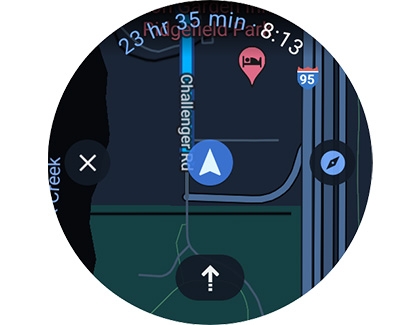
Set up GPS on your Galaxy watch
Your Galaxy watch includes a GPS sensor for tracking your real-time location data. You can easily turn on the GPS setting from your watch. You can also improve the location accuracy so it’s always updated with your current position.
Set up GPS on your Galaxy watch
Enable GPS on your Galaxy watch
Note
The steps may differ depending on your watch model. Please see your user manual for specific instructions.
In order to use location-based services and apps on your Galaxy watch, such as Google Maps, you’ll need to enable your watch’s GPS location setting. You can also increase the signal’s accuracy to ensure it’s correct every time.
- On your watch, navigate to and open Settings.
- Tap Location, and then tap the switch next to Location to turn it on. You may need to allow certain permissions on your watch before continuing.

- Next, swipe to and tap App permissions. From here, you can choose when your watch’s location will be used, and by which apps.
On older watch models, such as the Galaxy Watch3, open Settings, and then tap Location. Tap the switch to turn it on. Under Methods, you can select when your watch uses location data.
Read less
Use Google Maps on Wear OS models
If you have a Galaxy Watch with Wear OS, that means it has Google software, which also means it comes with Google Maps! You can use the app to navigate and keep track of your location the way you would on a phone, just on a smaller screen. Check out our guide to learn more about using Google Maps on your Wear OS Galaxy watch.


Read less
Record your location using GPS
While wearing your watch during an exercise routine, the watch’s GPS can automatically detect the workout and record your location. This can be enabled using the watch or the connected phone.
From your watch:
- On your watch, open Samsung Health, and then tap Exercise or Workout.
- Tap Settings, and then scroll to the bottom and tap Auto detect workouts.
- Tap the switch to turn it on, and then tap the switches next to your desired workouts.

- Tap a workout, such as Walking, Running, or Bike, and then tap Record location. Under that, you can set whether you want the watch to ask every time, or always record your precise location.
From your phone:
- On your phone, navigate to and open the Galaxy Wearable app.
- Tap Watch settings, and then tap Health.
- Tap Activities to detect, and then tap the switch to turn it on. Tap the switch(es) next to your desired workouts.
- Tap either Walking, Running, or Bike, and then tap the switch next to Record location to turn it on. You can also choose whether it asks every time or records your precise location.
Read less
Troubleshoot GPS on your Galaxy watch
GPS and location data on your Galaxy watch can be affected by certain conditions. For example, it may not be accurate if your watch has been disconnected from your phone, if the signal is poor, or if the software needs to be updated.


Read less
Recommended Articles
Set up and use Bixby on your Galaxy Watch
Set up and use Bixby on your Galaxy Watch Your favorite AI assistant, Bixby, is now more accessible than ever, because it’s available on select Samsung smart watches. This means you can command Bixby without using your phone. We’ve outlined the steps to get Bixby up and running on your watch. Set up and use Bixby on your Galaxy Watch Note Availabl
Set up Samsung Pay on your phone or watch
Set up Samsung Pay on your phone or watch Samsung Wallet transforms your Samsung phone or smart watch into a digital wallet, seamlessly storing your credit, debit, or gift cards. It combines convenience with security by employing biometric safeguards to protect your financial information. Set up Samsung Pay on your phone or watch Note It's importan
Set up and use the Galaxy Tab A9+ Kids Bundle
Set up and use the Galaxy Tab A9+ Kids Bundle Your child can safely explore the features of a mobile device with the Galaxy Tab A9+ Kids Edition. It supports monitored browsing through parental controls and features a durable, colorful case for secure travel. Your child will have access to fun, creative, and educational content by Samsung Kids, alo
We're here for you
Contact Samsung Support
Contact us online through chat and get support from an expert on your computer, mobile device or tablet. Support is also available on your mobile device through the Samsung Members App.



